


How Professional Editors Use CapCut to Save Time & Money
Capcut provides you with tools that will quickly make the process and keep the production-level outcomes.
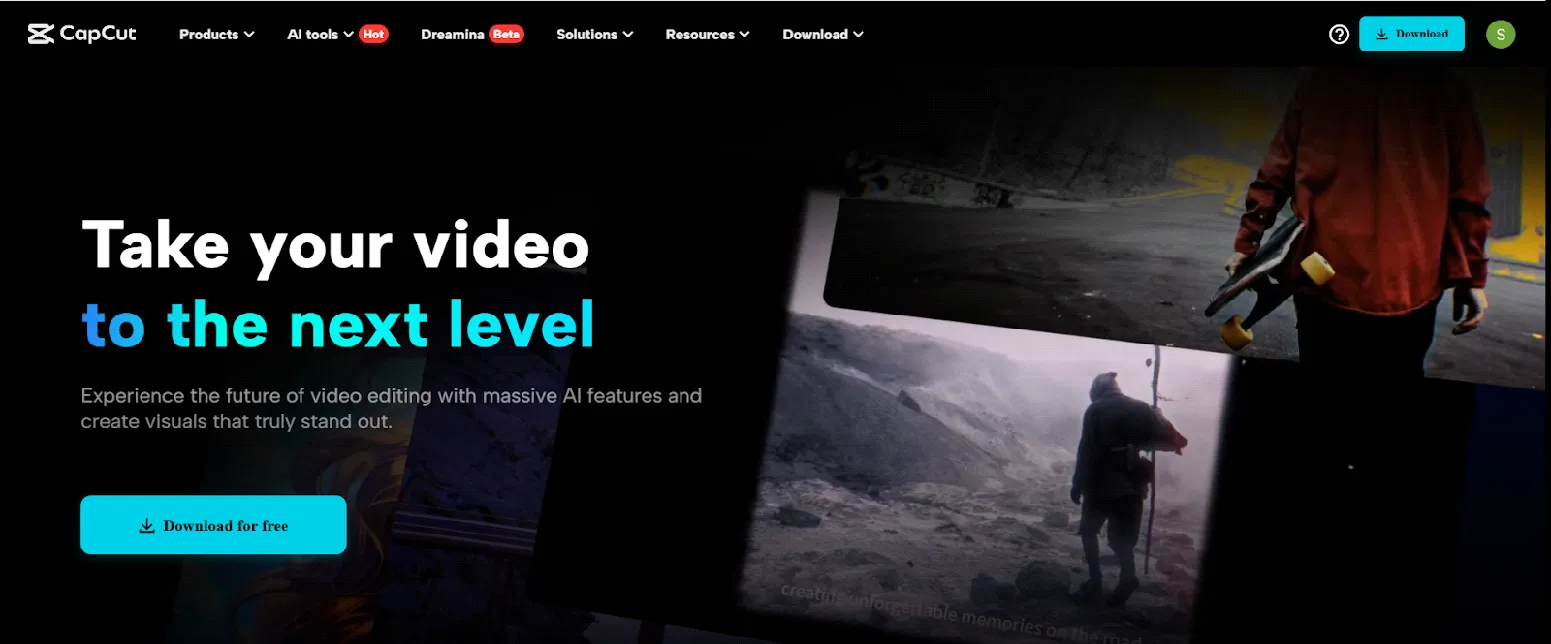
No matter whether you are editing clients, running a social media campaign, or creating video content on YouTube, Capcut provides you with tools that will quickly make the process and keep the production-level outcomes. Some even go as far as utilizing it with the help of such tools as an AI voice generator but in the case of CapCut, there is such an opportunity built in, and editors do not always have to resort to external services.
But how professional editors are taking advantage of CapCut to reduce time and money expenses without sacrificing quality? Let us investigate.
Built-In Stock Assets That Eliminate Extra Costs
This in-built component is a significant stronghold for the people in the field who must provide quality content without incurring added costs in royalty-free resources.
How Professional Editors Use CapCut PC- 5 Steps Guidance
The first step is opening up CapCut and tapping on "New project". To add your footage, images, or audio, use the "Import" button. Afterwards, copy and paste them on the timeline at the bottom to start editing.
Such a drag-and-drop interface helps editors save several hours of preparation and is particularly useful with a number of video assets and short time deadlines.

CapCut’s built-in "Enhance quality" tool gives editors a quick way to improve footage quality. Click on a clip in the timeline, go to the right panel, and toggle “Enhance quality” on.
This feature acts as an AI video upscaler, sharpening details and adjusting brightness and contrast automatically—perfect for client videos that need quick upgrades.

Pros do not repeat the steps, creating visual effects manually, but accelerate the creative experience, using the "Filters" and "Effects" panels of CapCut. The "Filters" tab allows one to add cinematic effects, whilst the "Effects" tab allows the application of visual effects such as lens flares, VHS effects, or glitch reads.
In a few simple clicks, it is possible to stylize your whole video and be consistent in your projects without any manual color grading and intricate stacking.

Most editors have resorted to the use of CapCut in its "Text to speech" to save on voice talent. Click on the tab "Text" and choose "Text to speech". Enter text in your script, choose a voice and a language, and press Generate.
The voiceover comes in the form of an audio spoken track in your timeline, a cheap and quick alternative to text to speech AI for explainer videos, tutorials, and product walkthroughs.

After you have polished your video, you can choose the option that is in the top-right corner, which is the option to "Export". Select your resolution (HD or 4K), a type of file, and the directory where the output should be stored. CapCut also fast-tracks the export to ensure little wastage of time in the delivery of the project.
It is a leaner export system that delights freelancers as well as agencies with turnaround and client satisfaction.

Why Editors Are Switching to CapCut
Green screen editing with chroma key assistance
Editing complex projects in multi-track mode
Ample built-in effects and drag-and-drop simple transitions
Device cross-project synchronization
Artificial intelligence technology that can compete with high-quality software
These features are a game-changer among the editors dealing with a large amount of work and short deadlines. An additional benefit is that CapCut does not have to be paid to use it, so it is an economical solution to high-priced editing suites.
CapCut integrates the functions of an AI voice generator or standalone AI video upscaler into a single, efficient platform, even in case you were previously using them as stand-alone subscriptions.
Final Thoughts
In case you need to save time and money on possessing these items without hurting creativity and quality, it is high time you tried out CapCut. The tools are potent, the workflow is seamless, and the results do the talking.
This article is a guest contribution. Views expressed are the author’s own.
